Settings & Account
Profile Settings
How to update your display name and email address in Contoura.
Changing your display name
- 1Click the Settings icon (⚙) in the bottom-right of the sidebar.
- 2Under "Profile", update your name in the "Display name" field.
- 3Click "Save name".
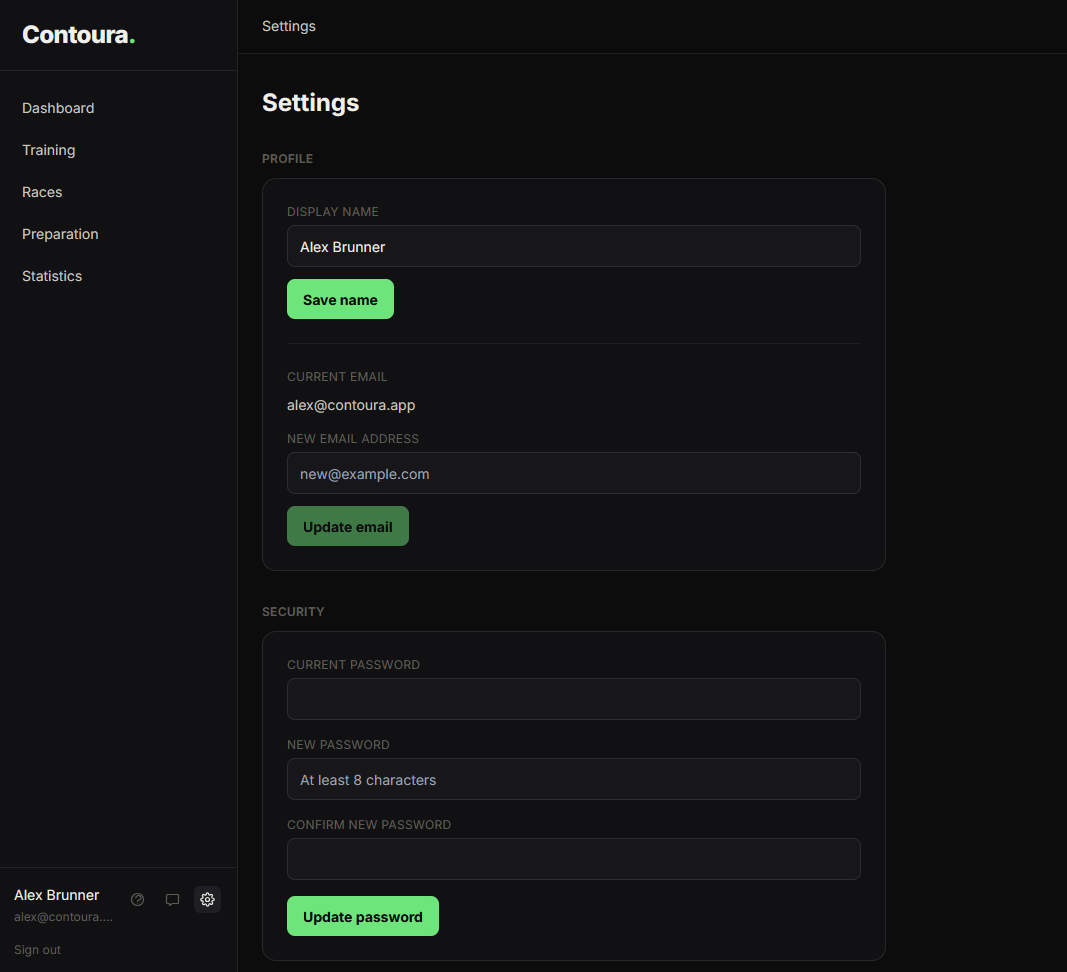
Your name is shown in the sidebar and on exported data. It does not affect how your name appears in imported race results — that is taken directly from the o-l.ch data.
Changing your email address
- 1Go to Settings.
- 2Under "Profile", find the "New email address" field.
- 3Enter your new email address and click "Update email".
- 4Check your new inbox for a confirmation email and click the link inside.
Your email address only changes after you click the confirmation link sent to your new address. Until then, your current email stays active and you can continue logging in with it.
If the confirmation email does not arrive within a few minutes, check your spam folder. The confirmation link expires after 60 minutes.