Race Preparation
Linking a Preparation to a Race Result
How to link and unlink a preparation to an imported race result.
How automatic linking works
When you import a race result from o-l.ch, Contoura automatically looks for an existing preparation with the same event ID and class. If found, the preparation is linked to the result automatically.
For the auto-link to work, both the start list preparation and the race result must come from the same o-l.ch event URL — they share the same result_event_id parameter.
Linking manually
If the automatic link did not happen — for example because the preparation was created manually — you can link it yourself.
- 1Open the preparation.
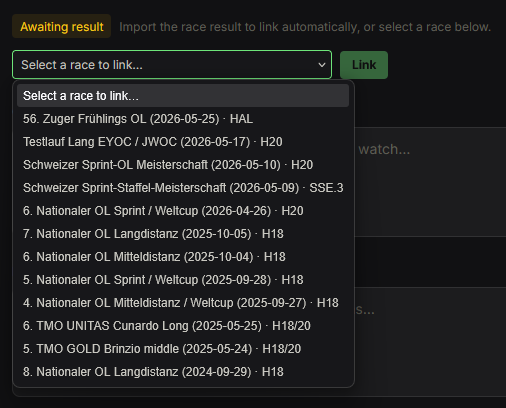
- 2In the status section, you will see "Awaiting result" with a dropdown.
- 3Select the correct race from the dropdown.
- 4Click "Link".
Unlinking a preparation
If you linked to the wrong race, you can remove the link.
- 1Open the preparation.
- 2In the status section, click "Unlink" next to the linked race name.
- 3Confirm the removal in the dialog.

Unlinking only removes the connection between the two records. Both the preparation and the race result remain intact.