Race Preparation
Creating a Preparation from a Start List
How to create a race preparation by importing your start time and details from an o-l.ch start list.
Overview
There are two ways to create a preparation: importing a start list from o-l.ch (which auto-fills your event details, start time, and bib number), or entering the details manually. This article covers the start list import. For the manual option, see "Creating a Preparation Manually".
Step 1 — Pick your event
- 1Go to Preparation in the sidebar and click "New preparation".
- 2The "Upcoming events" tab lists all upcoming events on o-l.ch with a published start list.
- 3Click your event.
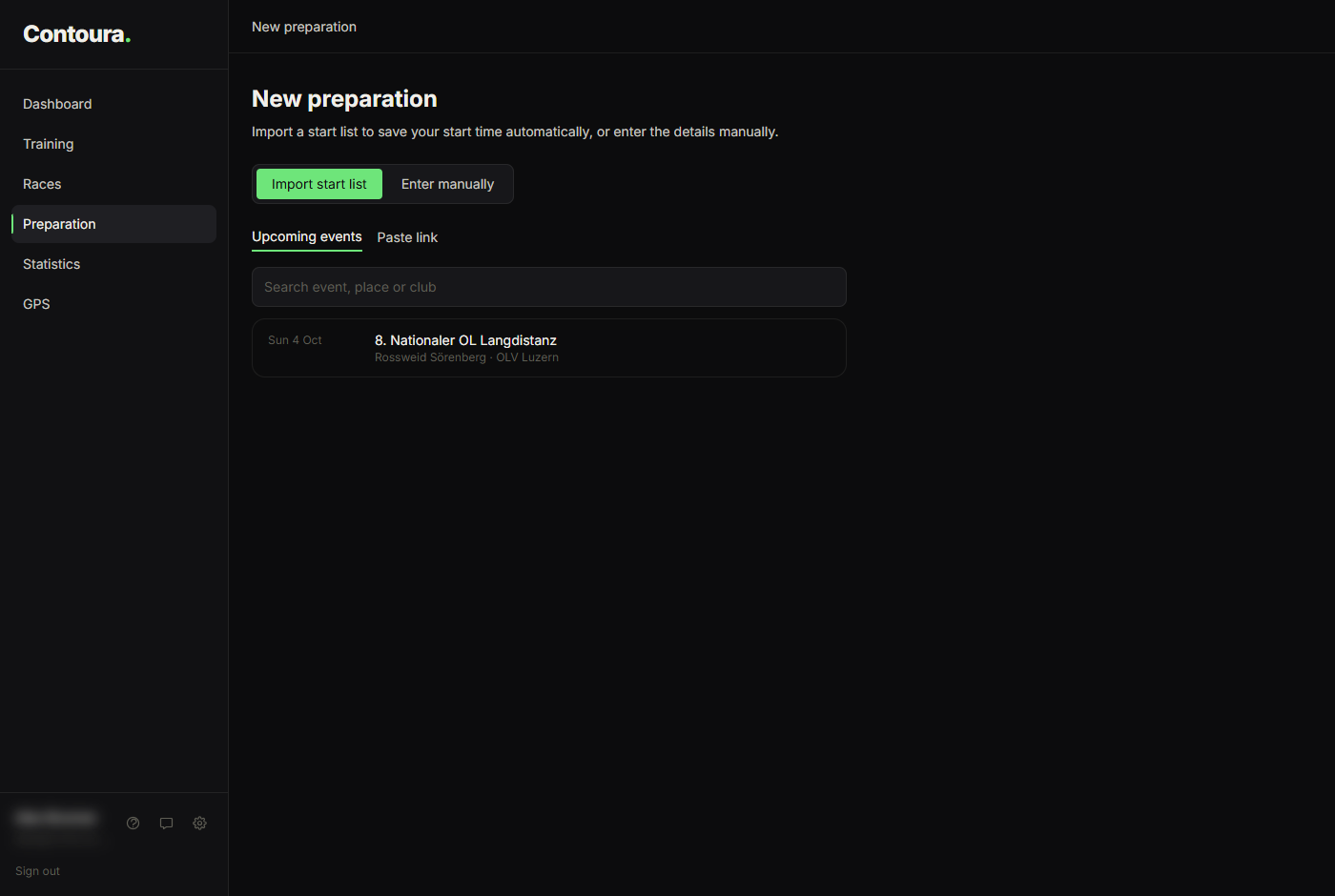
Event not listed? Switch to "Paste link" and paste the address of the start list page from o-l.ch (it contains "type=start").
Step 2 — Find your name
- 1Search for your name (prefilled from your profile) or pick your class.
- 2Check that your name is selected — the list shows start times and bib numbers.
- 3Click "Next".
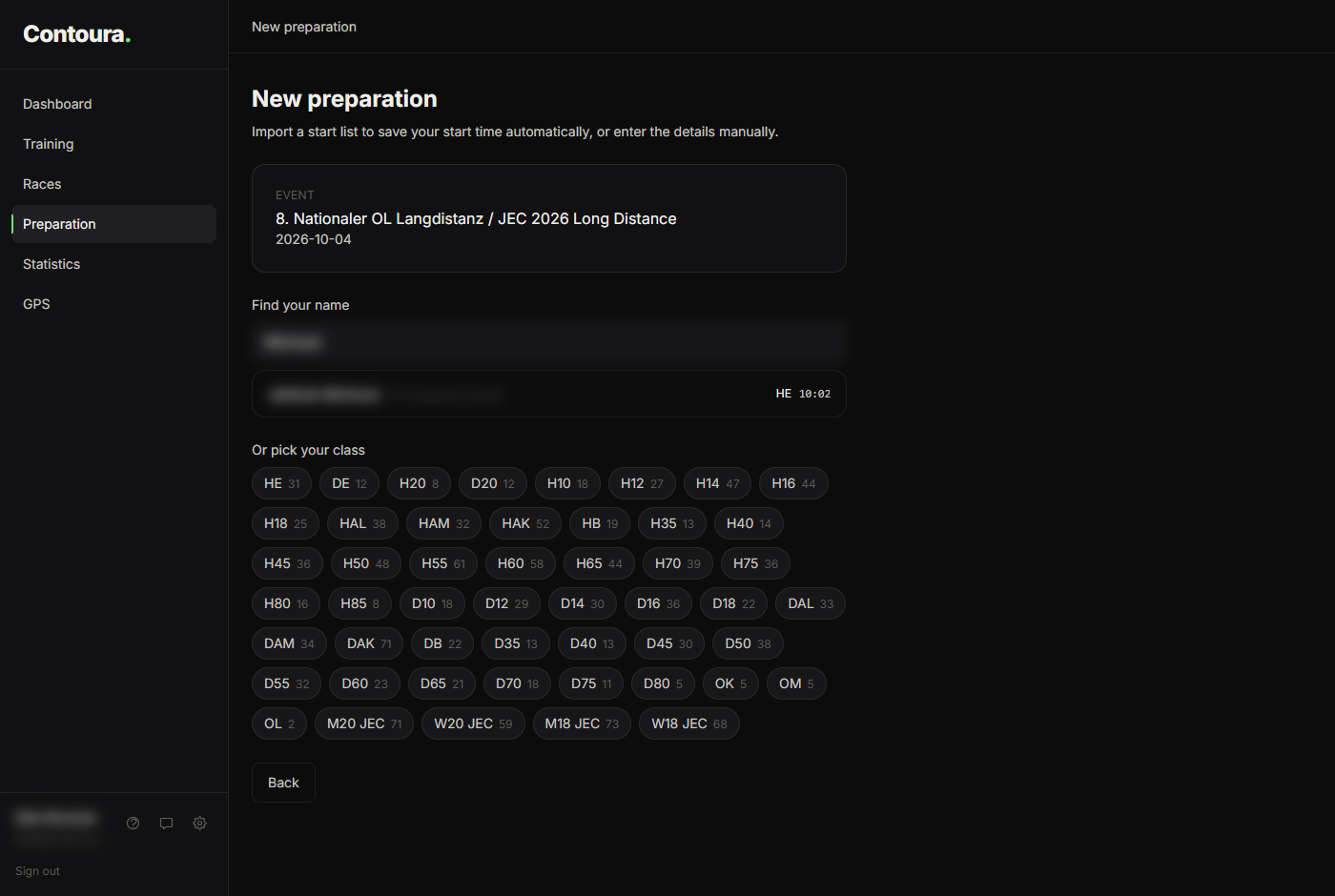
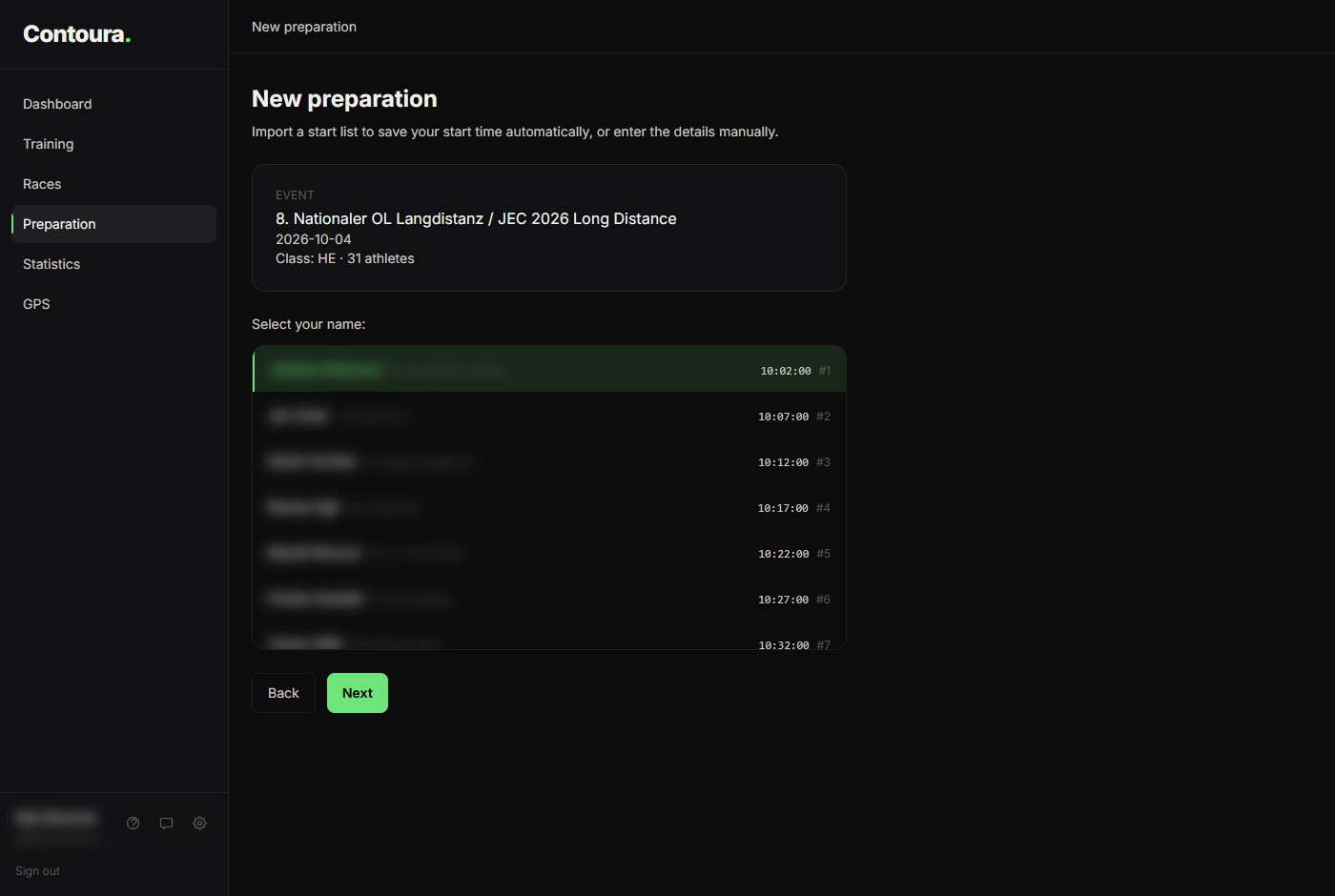
o-l.ch shortens long names in start lists (about 22 characters). This does not affect linking the preparation to your result later.
Step 3 — Add goals and course notes
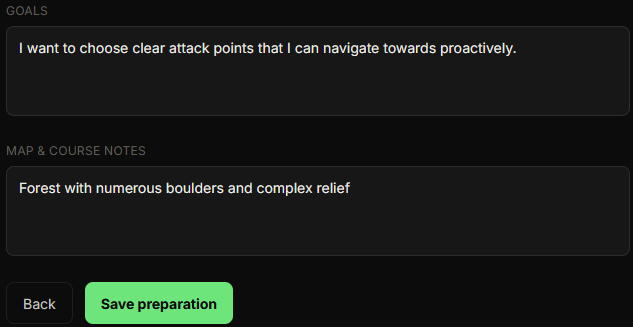
After selecting your name, the preparation moves to the goals and notes step. Here you can write your race strategy and any notes about the map or terrain before saving.
Linking to a race result
When you later import the race result from the same event, Contoura automatically links the preparation to the result — matching by the o-l.ch event and class. You can then view your pre-race goals alongside the actual performance on the race analysis page under the "Preparation" tab.
If the automatic link did not happen, you can link manually. See "Linking a Preparation to a Race Result".