Importing Races
Importing a Race from o-l.ch
Step-by-step guide to importing your race results from o-l.ch into Contoura.
Overview
Contoura imports race results directly from o-l.ch, the Swiss orienteering results platform. Pick your event from the list of published results, find your name, and Contoura loads all split times automatically.
Step 1 — Pick your event
- 1In Contoura, go to Races and click "Import race".
- 2The "Browse events" tab lists all results published on o-l.ch, newest first.
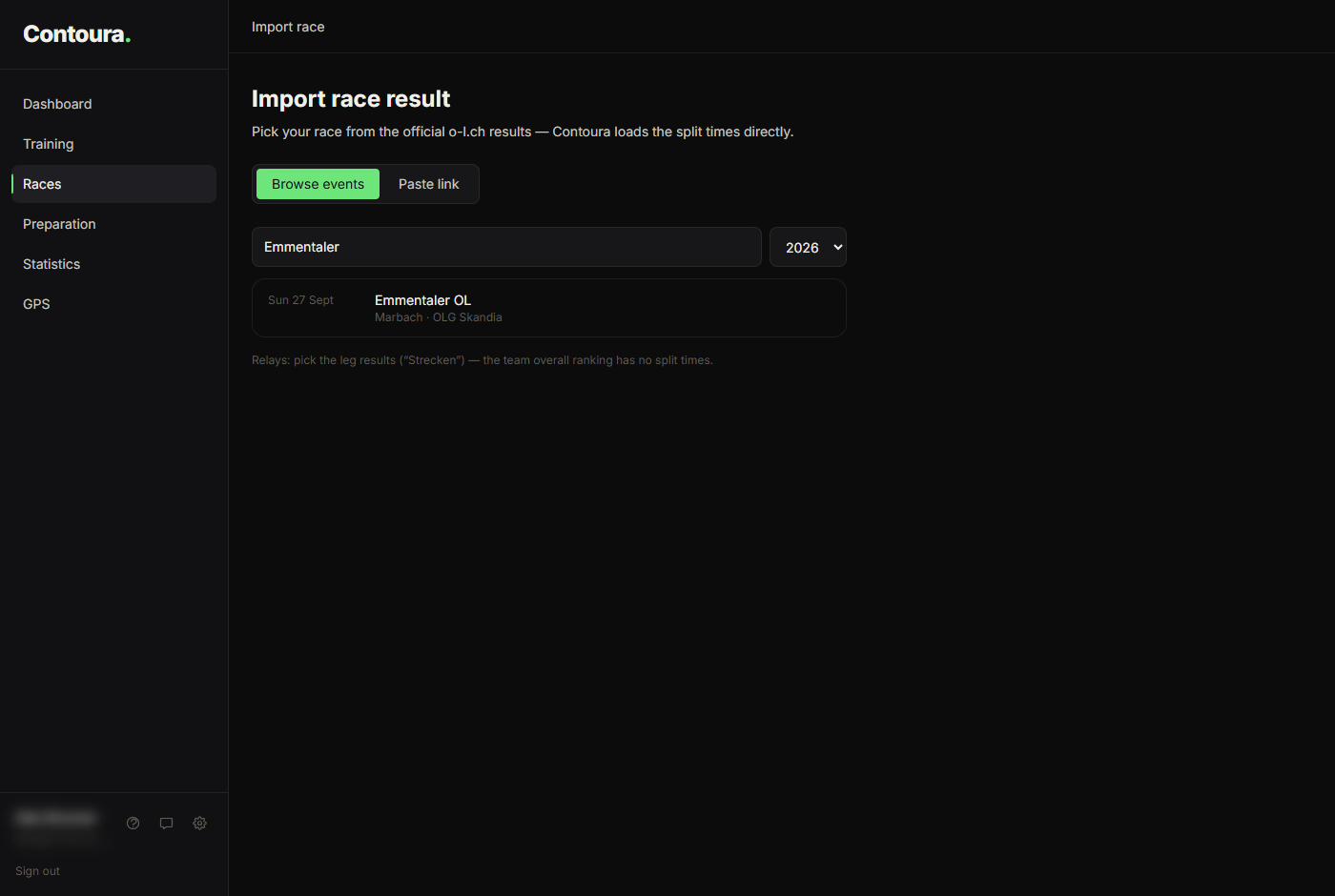
- 3Search by event name, place or club, or switch the year for older races.
- 4Click your event.
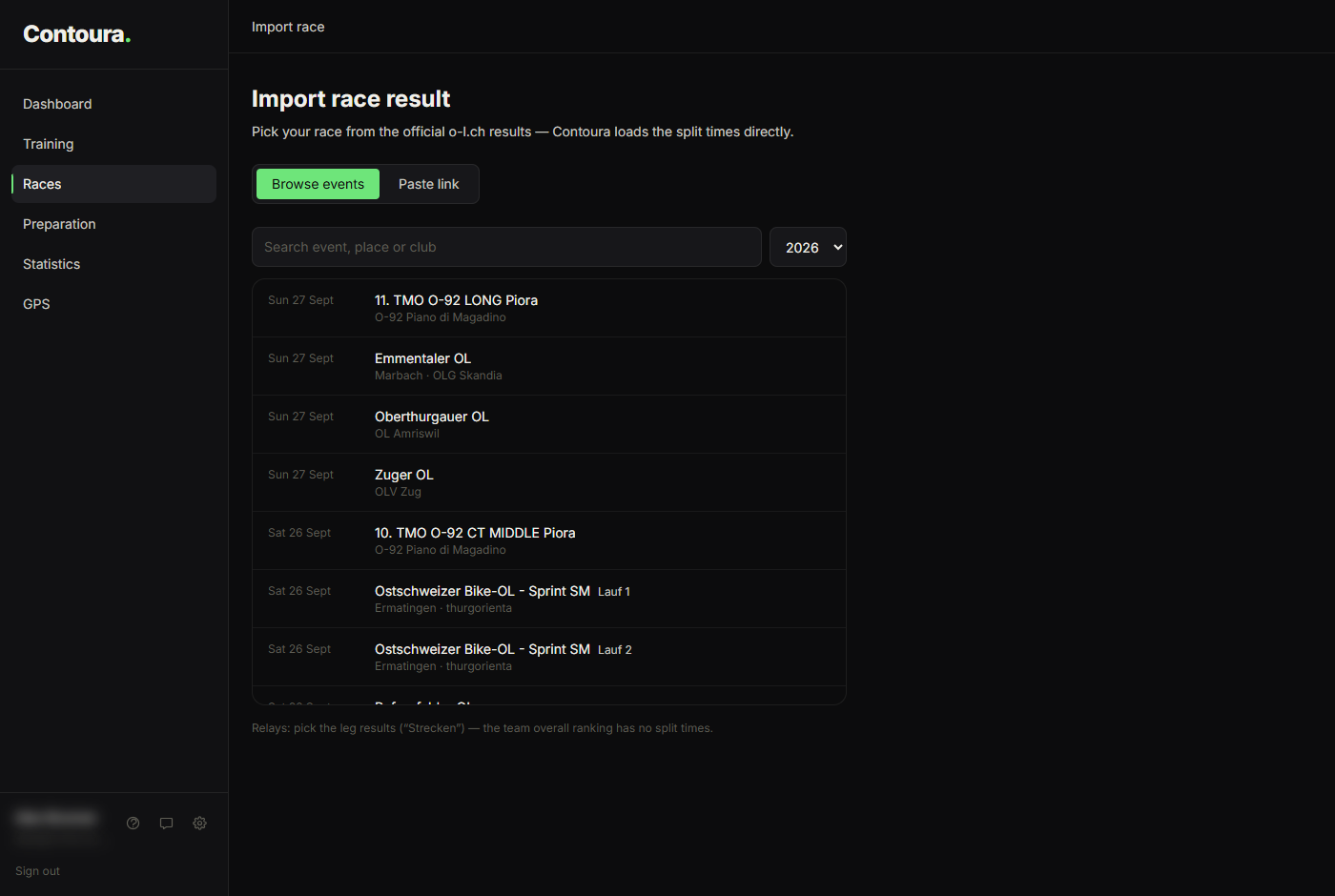
Relays: pick the leg results (marked "Strecken"). The team overall ranking has no split times per runner and is therefore not listed.
Step 2 — Find your name
Contoura searches all classes of the event for your name (prefilled from your profile). Click your entry to continue. Alternatively, pick your class directly from the class list below the search.
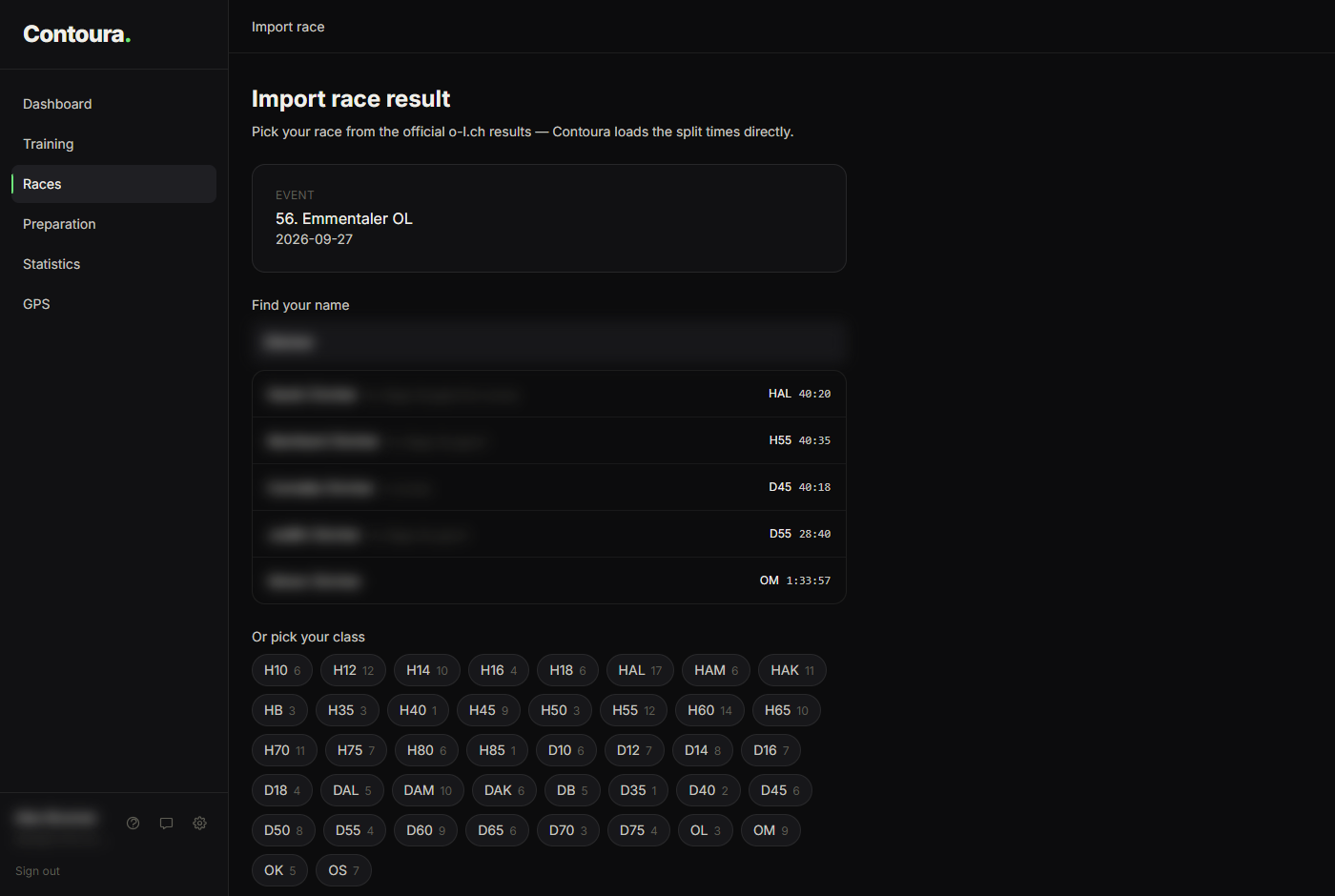
o-l.ch sometimes lists names as "Last name First name". The search finds you in both orders.
Step 3 — Confirm and choose the discipline
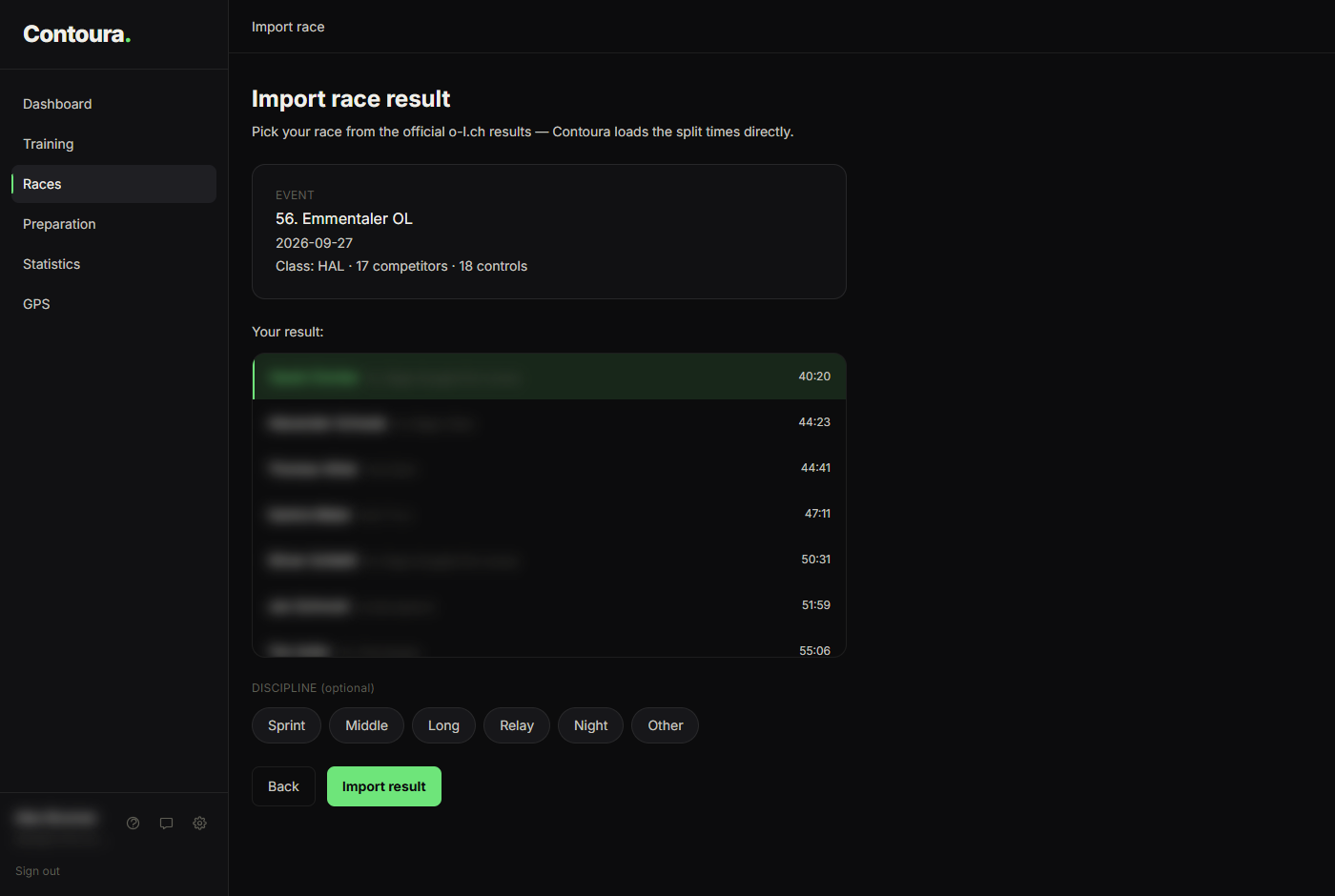
Contoura shows the event, your class and all athletes with their finish times, with your name already selected. Choose the discipline (Sprint, Middle, Long, Relay, Night, or Other) — it is often detected automatically — and click "Import result".
Alternative — Paste a link
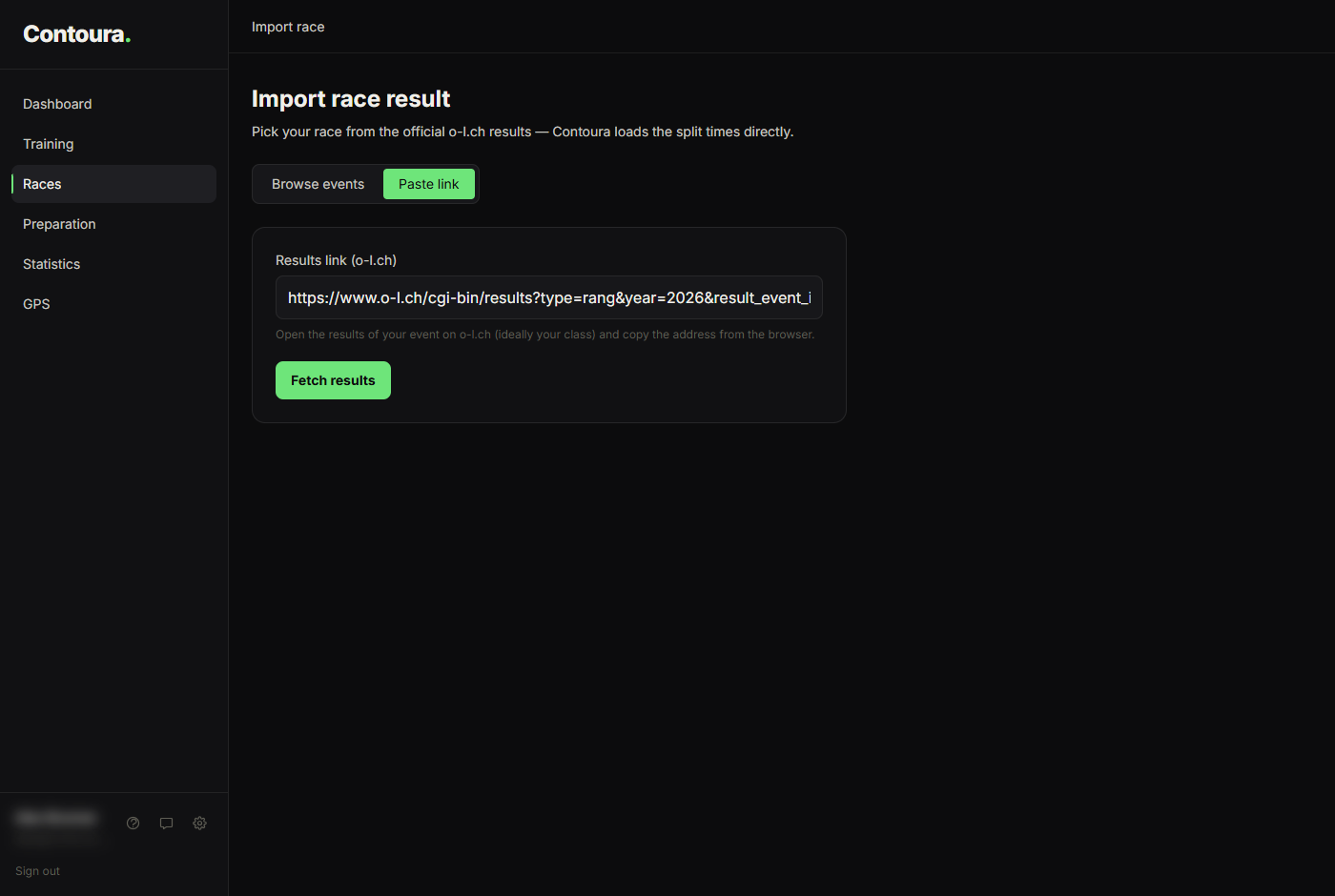
If you cannot find your event in the list, switch to the "Paste link" tab and paste the address of the results page from o-l.ch. If the link points to your class, Contoura opens it directly.
- https://www.o-l.ch/cgi-bin/results?type=rang&year=2026&result_event_id=...&kat=...
What Contoura fills in automatically
- Event name and date from o-l.ch
- Discipline (Sprint, Middle, Long, Relay) when o-l.ch provides it or the event name contains it — you can change it before importing
- The Livelox link of the event, if the organiser registered one on o-l.ch
- Your start time, if the organiser published start times in the results
Importing the same event multiple times
You can import the same event more than once — for example, if you ran in two different classes at the same event, or if you want to import results for two athletes from the same family. Each import creates its own race record.
Importing the exact same result (same event, same class, same athlete) twice will create two identical entries. Check your Races list before re-importing.
Races without a finish time
If you did not finish (DNF), missed a control (MSP), or were disqualified (DSQ), the import still works. Your status is shown on the race card. Time-loss calculations will be limited or unavailable for incomplete runs.