Settings & Account
Exporting & Importing Your Data
How to download a complete copy of your data and how to import a backup.
What the export includes
- All imported race results (including split times and AI insights)
- All leg comments
- All training sessions
- All race preparations
- Your profile information
How to export
- 1Go to Settings.
- 2Scroll to "Your data".
- 3Click "Download my data".
- 4A JSON file is downloaded to your device.
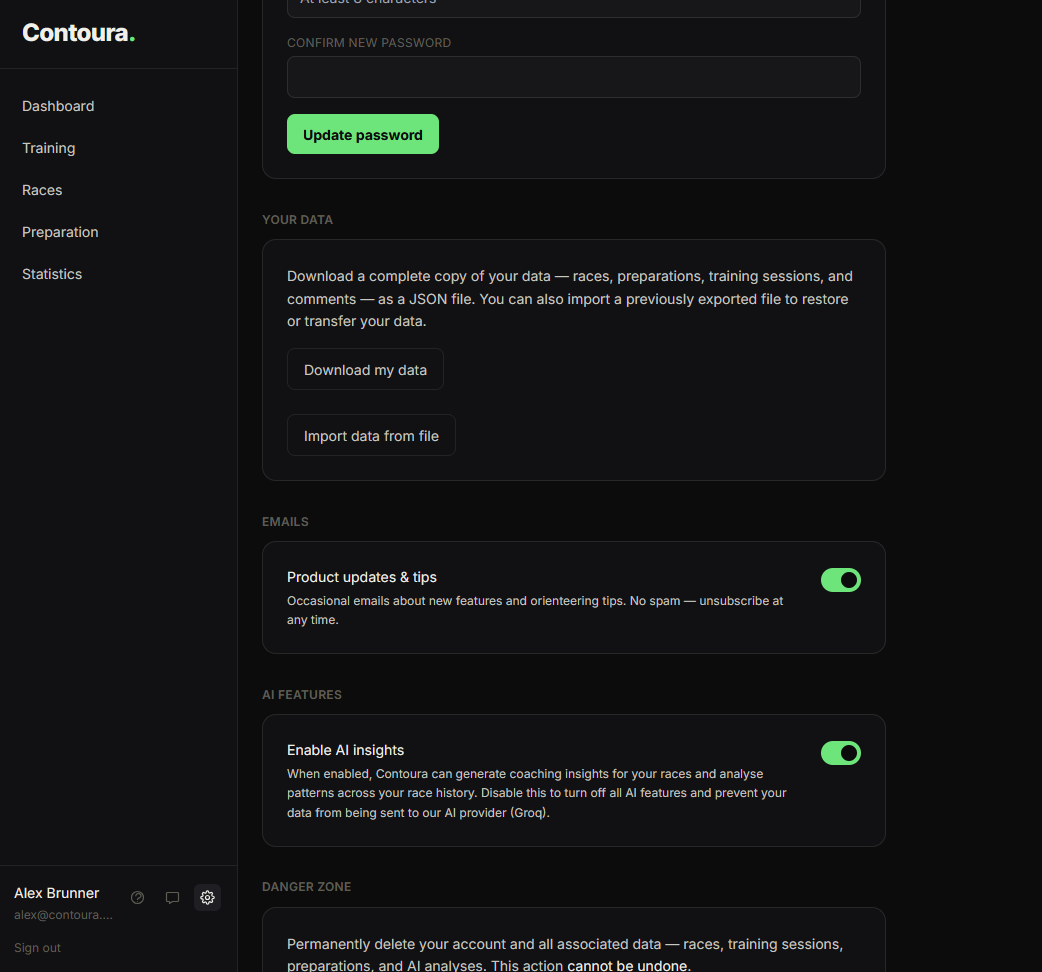
Keep regular exports as a personal backup. The file can also be imported into another account to transfer your data.
How to import
- 1Go to Settings.
- 2Scroll to "Your data".
- 3Click "Import data from file".
- 4Select your previously exported JSON file.
- 5Wait for the import to finish — a summary shows how many records were imported and how many were skipped.
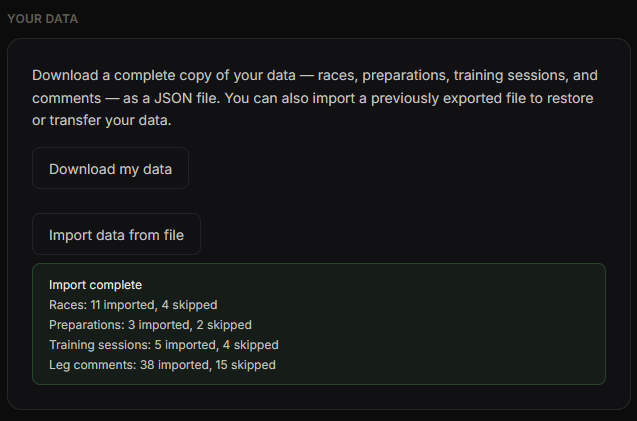
Importing is safe to run multiple times. Contoura detects duplicates automatically and skips records that already exist — so re-importing your own export will not create duplicates.
Only files exported from Contoura (version 1 format) can be imported. Modified or third-party JSON files will be rejected.
Transferring data to another account
You can use the export/import pair to move data between accounts — for example if you create a new account with a different email address. Export from the old account, then import into the new one. All records will be re-assigned to the new account with new IDs.